
Documentation
Everything you need to know to use Hyllo effectively
Quick Start
Learn how to use Hyllo quickly and easily
1. Install Hyllo
Steps to install Hyllo on your Mac.
- •
Download the latest version of Hyllo from the download page
- • Open the downloaded .dmg file and drag the Hyllo icon to your Applications folder
- • Open Hyllo from your Applications folder
- • If you see a warning about opening an app from an unidentified developer, go to System Preferences > Security & Privacy, and click "Open Anyway"
- • Allow microphone access when prompted for recording functionality
2. Model Management
How to download and manage models in Hyllo.
- • Clieck the "Manage Models" button in upper right corner of Hyllo app
- • Choose the model you want to download and click "Download" button. You can see the progress of the download by the process circle
- • You can delete the models you don't need by clicking the "Delete" button. You can also set the default model by clicking the "Set Default" button
You can refer to models comparison to choose the model that best suits your needs.
3. Configure LLM API
Set up your LLM API key and endpoint. This step is optional.
- •
Click the setting button in upper right corner of Hyllo app
- • Fill in the LLM API key and endpoint
- • Click "Fetch models" button. If the API key and endpoint are correct, you will see the list of models available, and you can choose the one you want to use
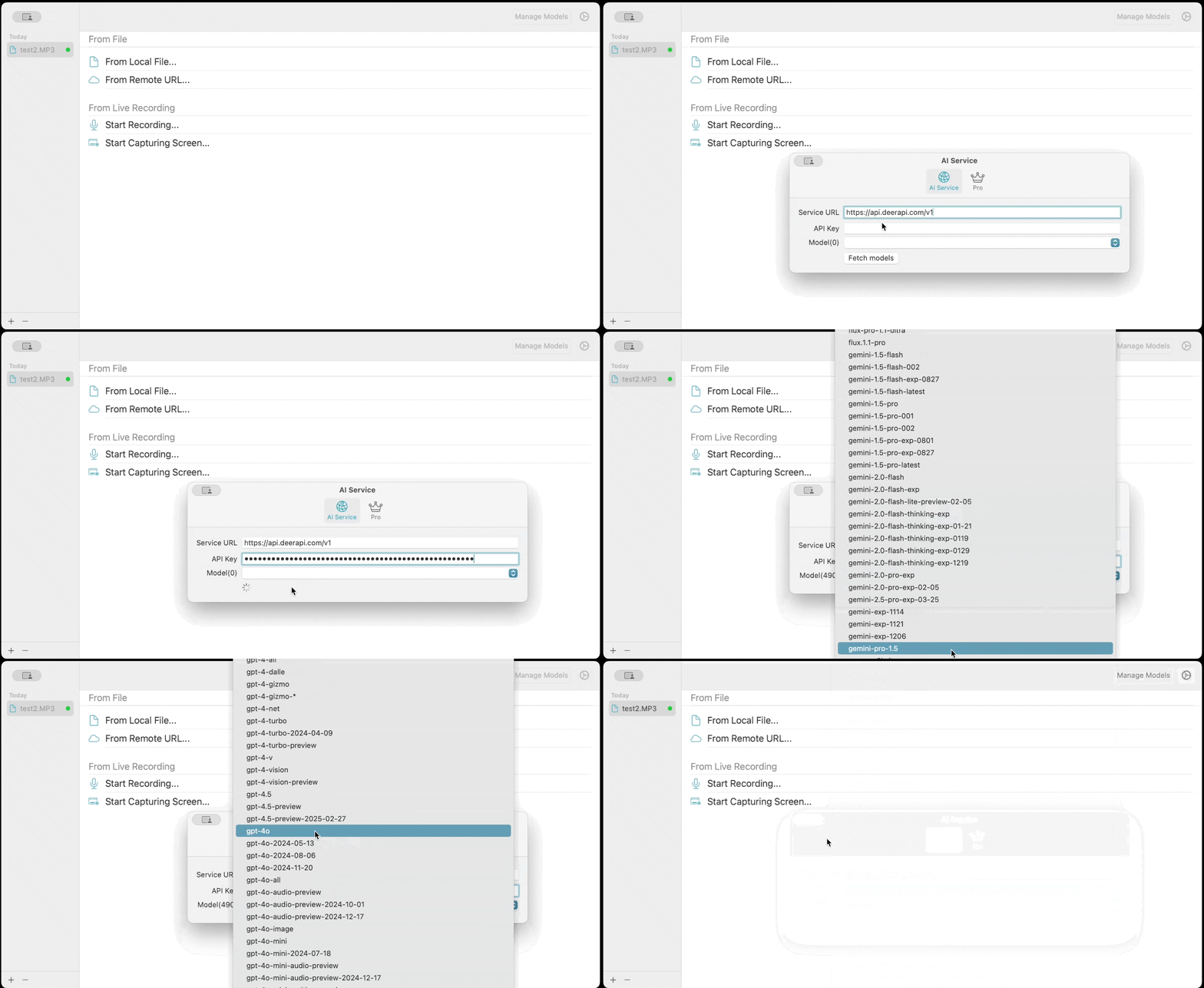
This step is only required if you want to use LLM to chat with or summarize.
4. Transcribe the audio/viedo
How to transcribe audio/video using Hyllo.
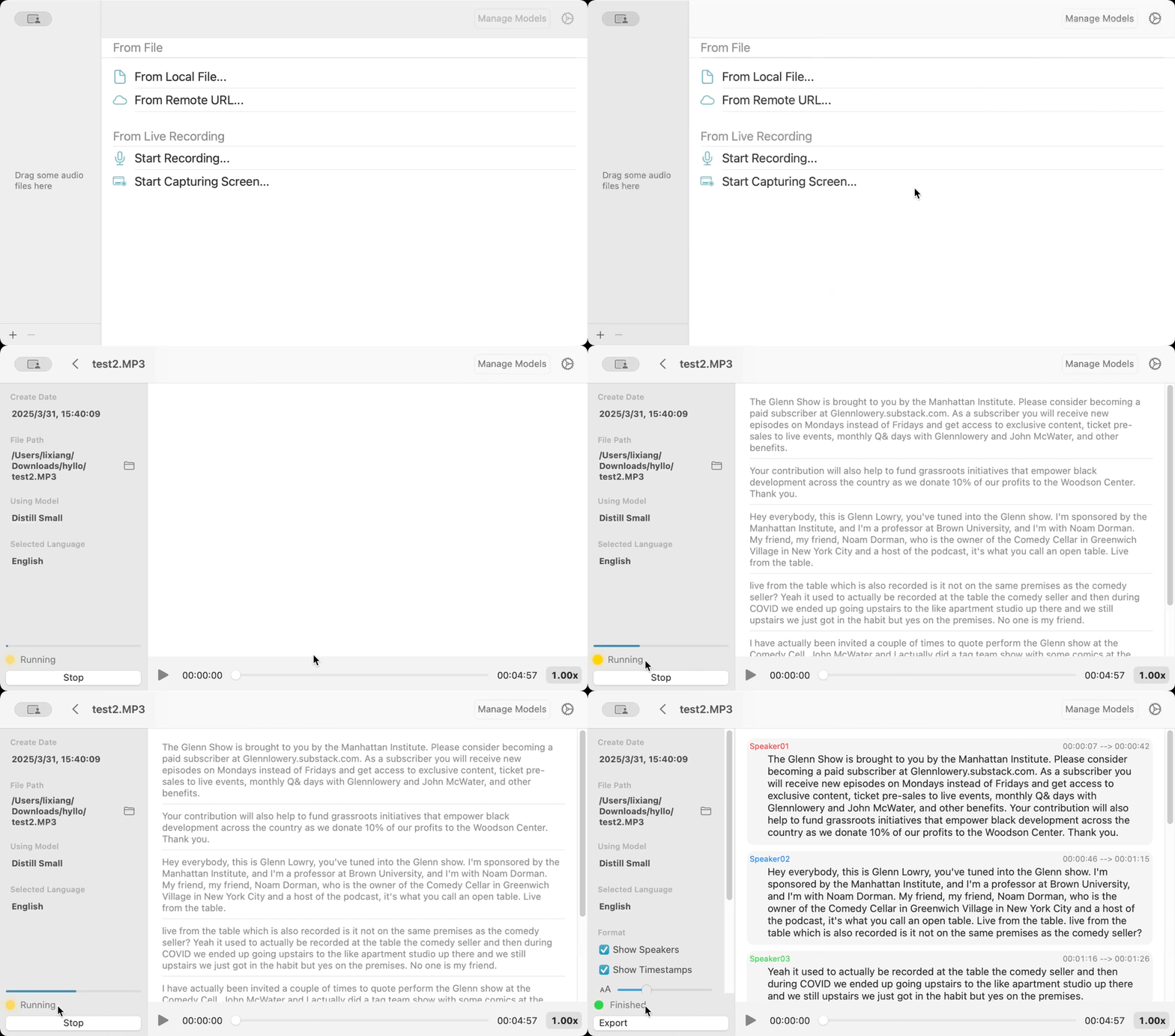
- • Click the "+" button to create a new project.
- • Import an audio or a video file from your computer or from a URL. You can also record audio directly using the microphone
- • Configure recognition settings (model, language, number of speakers)
- • Start transcription and wait for processing to complete
5. Chat or Summarize with LLM
How to use LLM to chat or summarize the transcription.
- • Click "Chat with AI" button on the left, the chatbox will open on the left side
- • You can ask any question about the transcription, and LLM will answer based on the transcription
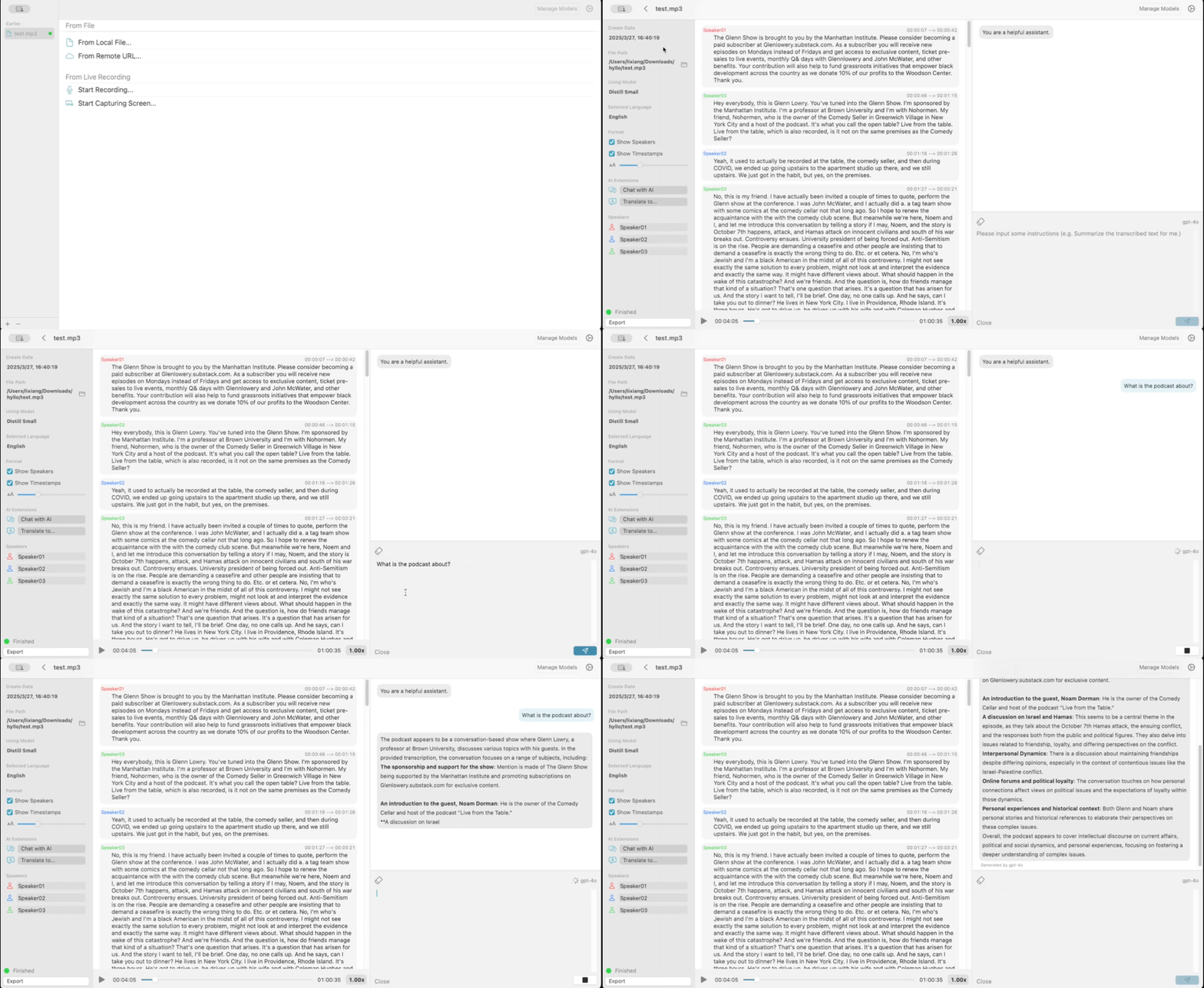
You must configure LLM API key and endpoint to use this feature, as described in section 3.